Find your way in SAP® Transaction codes (2)


Find your way in SAP Transaction codes (2)
This is the second article about two ways of searching for a certain SAP transaction code (“T-Code”) or it’s meaning in SAP, respectively how you can create a list of all T-Codes that are available on your SAP system.
The first article was about the SAP® transaction “SEARCH_SAP_MENU”. Now I will give you a second example, which is based on an actual SAP table. You therefore either need transaction SE16 for the Data Browser, or you can extract and analyze the data conveniently with dab Nexus. With dab Nexus, SAP tables can be evaluated securely and comprehensibly – ideal for checks, analyses or data reconciliation without having to export manually.
The steps necessary are as follows:
When using SAP, transaction codes can be entered directly in the commando field in the upper left corner of the screen. In the following screenshot I entered transaction ME23N, which is used for displaying a vendor purchase order.

As long as you know what T-Code you need, it is easy. However, sometimes you might have to dig into a new topic, without knowing any SAP transaction code at all, so research might be required.
SAP is based on a huge database which contains a lot of tables. Luckily, these do not only contain business transactions – there is a lot of customizing and SAP system information stored as well, like for example the list of SAP T-Codes.
They are stored in table TSTCT, and can be displayed using the SAP data browser SE16 or SE16n. (Sidenote: My colleague Florian Popan recently published a blogpost about downloading with SE16 – you might want to check it out in this context.)
If you – for example – want to find out what T-Code XK03 stands for, you can do this step by step, starting with:
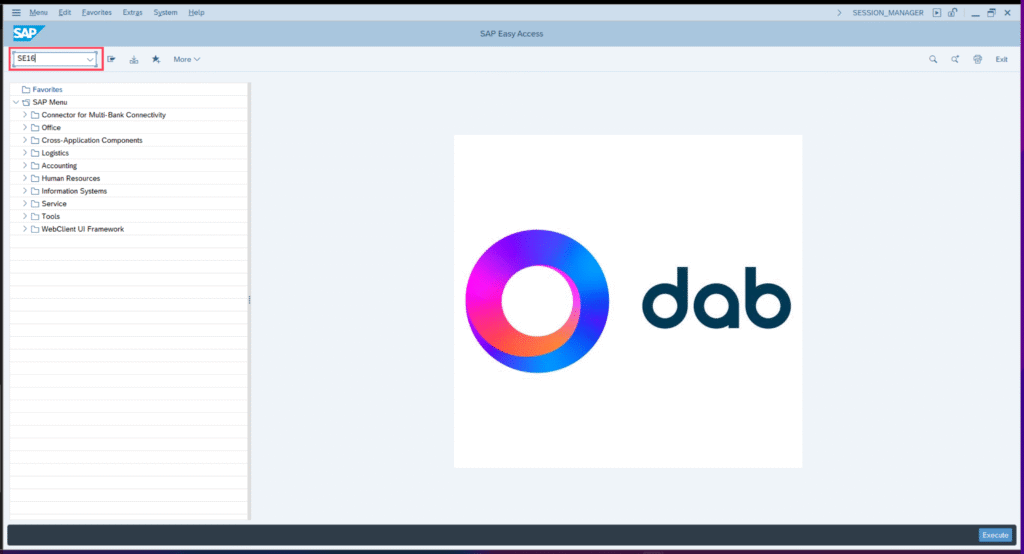
Entering transaction SE16 to call the SAP data browser:
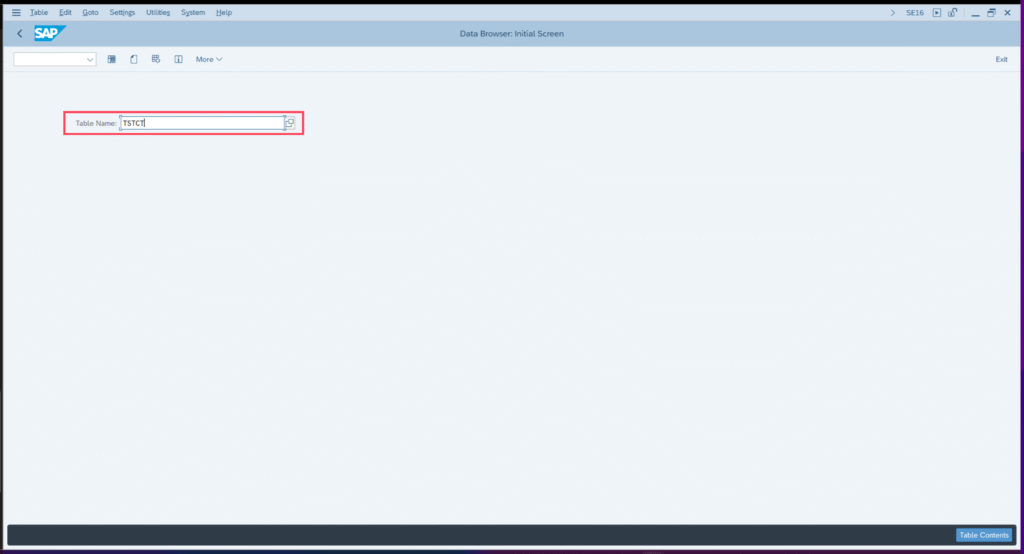
As table name you enter „TSTCT“:
You can look up a transaction code directly:
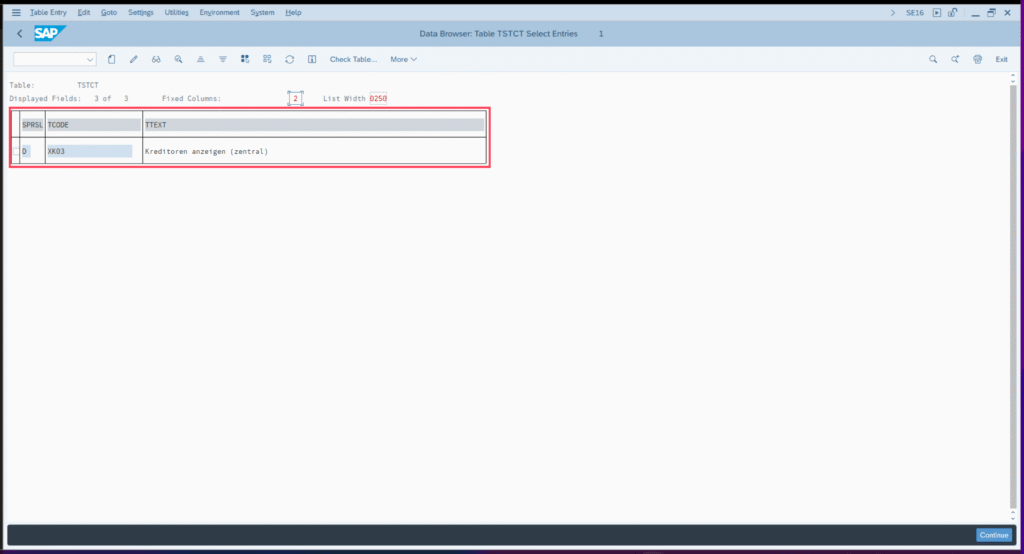
To find out about the meaning of XK03, you can enter it directly (ideally in combination with the language key, e.g. “EN” for English, or “DE” for German):

After clicking on „Execute“ you get the T-Code XK03 displayed, together with its description:
Access the entire list of transaction codes:
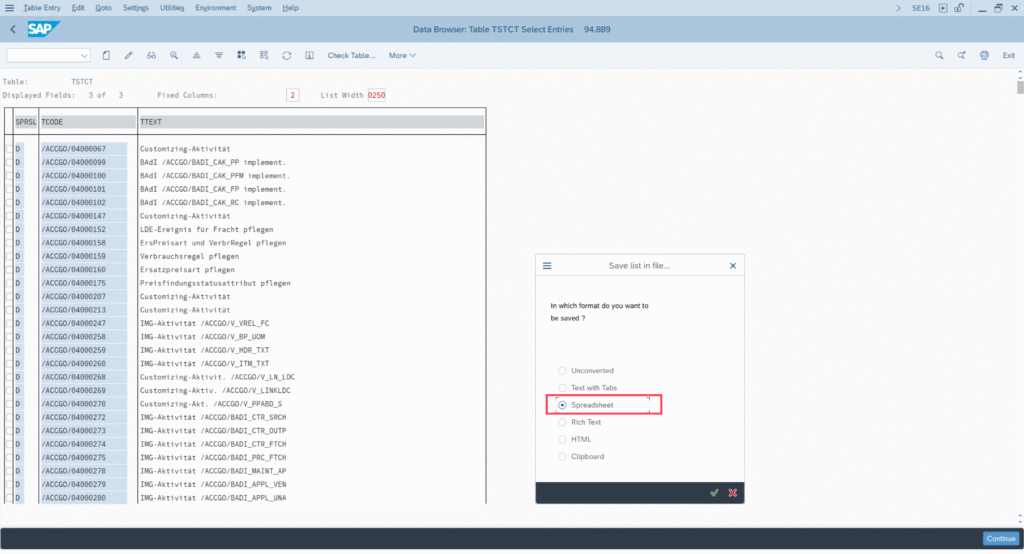
Now this is interesting, but usually too limited. Ideally you access not only one but the full list of all T-Codes which are in the system, for example by exporting all table entries to Microsoft Excel™. To do this, you again call SE16, but you do not enter any T-Code, only the desired language key. Make sure to remove the “Maximum number of hits” description to get all table entries displayed.

As you can see there are over 90 thousand T-Codes listed.

Exporting that list to Microsoft Excel™ (Local file → Spreadsheet) makes it easier to sort, filter or search for certain data.
Of course, extracting SAP data with dab Nexus is even more convenient and secure – you can then process the results flexibly in your preferred analysis tool, e.g. in Excel, Power BI, SQL, Microsoft Fabric, Snowflake or Databricks.
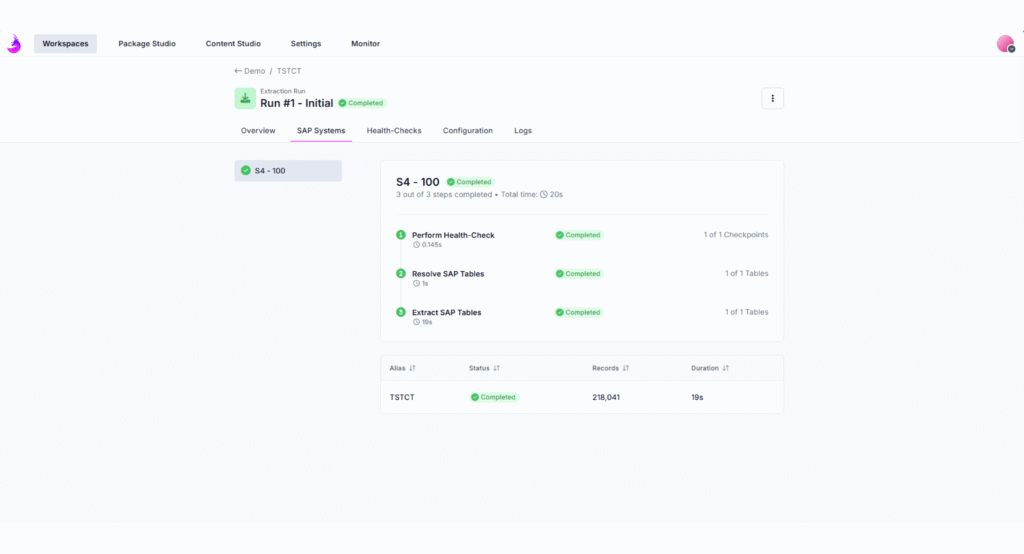
If you regularly evaluate SAP tables or need to track changes in your systems, it’s worth taking a look at our solutions:
I hope you found both articles useful and helpful!
- With dab Nexus, you can automatically extract, analyze and document SAP data in an audit-proof manner – ideal for audits, compliance and data analytics.
- Or benefit from our SAP consulting: our consultants can help you optimize your analysis processes and develop individual solutions for your company.
Content Listing
Share This Article